• This week I took a break from HackTheBox to work on a hardware project that I got a few weeks ago. During the holiday, I subscribed to a monthly subscription box service called ‘Hackerboxes‘, catchy right? Anyways, HB subscription includes a monthly hardware project that requires soldering together components onto some cool custom PCB’s and then installing and modifying some files/programs to get them to do cool things.

    This month’s box is called ‘Relay‘, and the overall goal was to build two LoRa IoT devices, a controller and a relay that can be controlled via the controller. Let’s get into it!

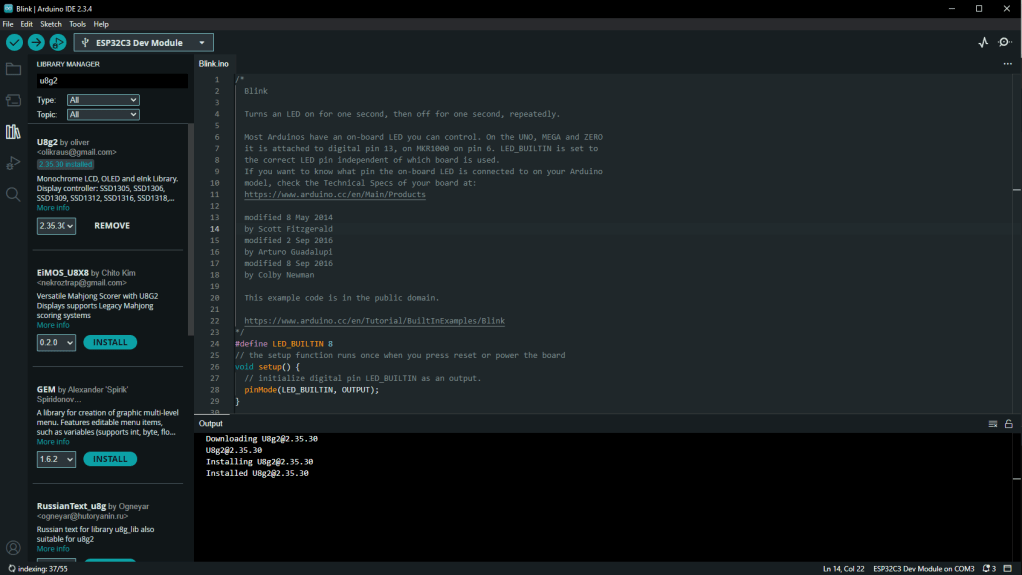
    The first step was to power on the ESP32C Dev board which become the main IoT Controller and compile a simple program to make it blink thus testing it’s functionality:

    This was simple enough, so the next program was to test the mini OLED display with a text string:

    Disclaimer, I do not know how to program C++ or Arduino specifically, most of this code came with the project and it only requires a few small changes to change the string. That said, I did like this project enough to get me into it a bit, which I’ll talk more about later.

    Putting It together

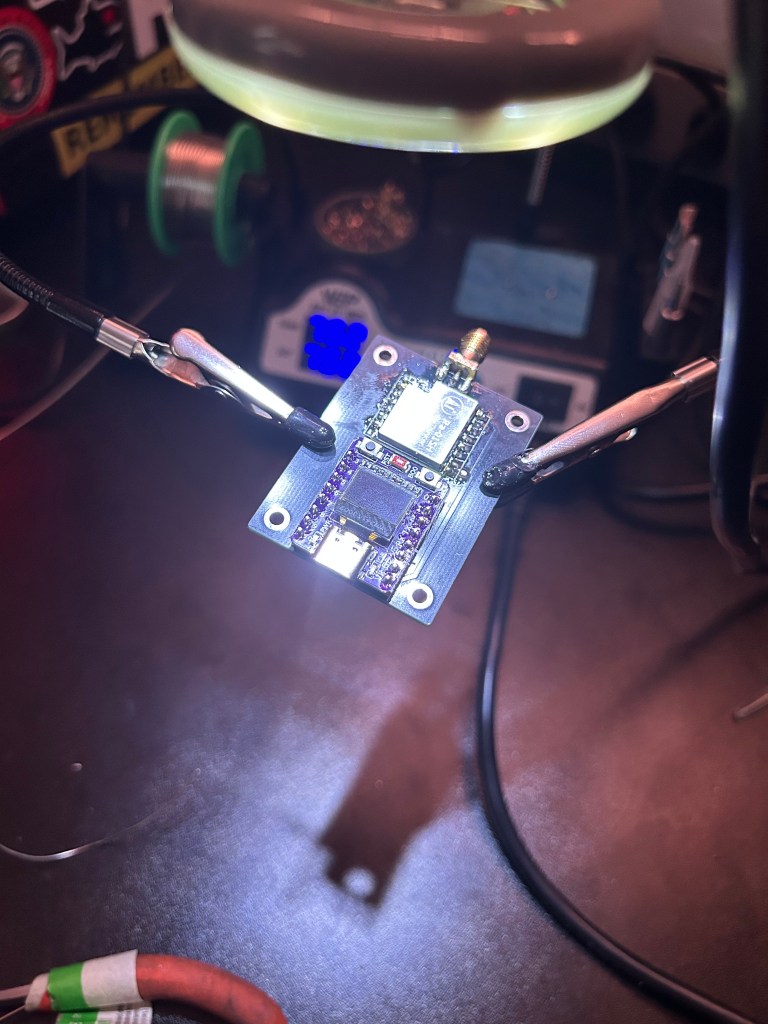
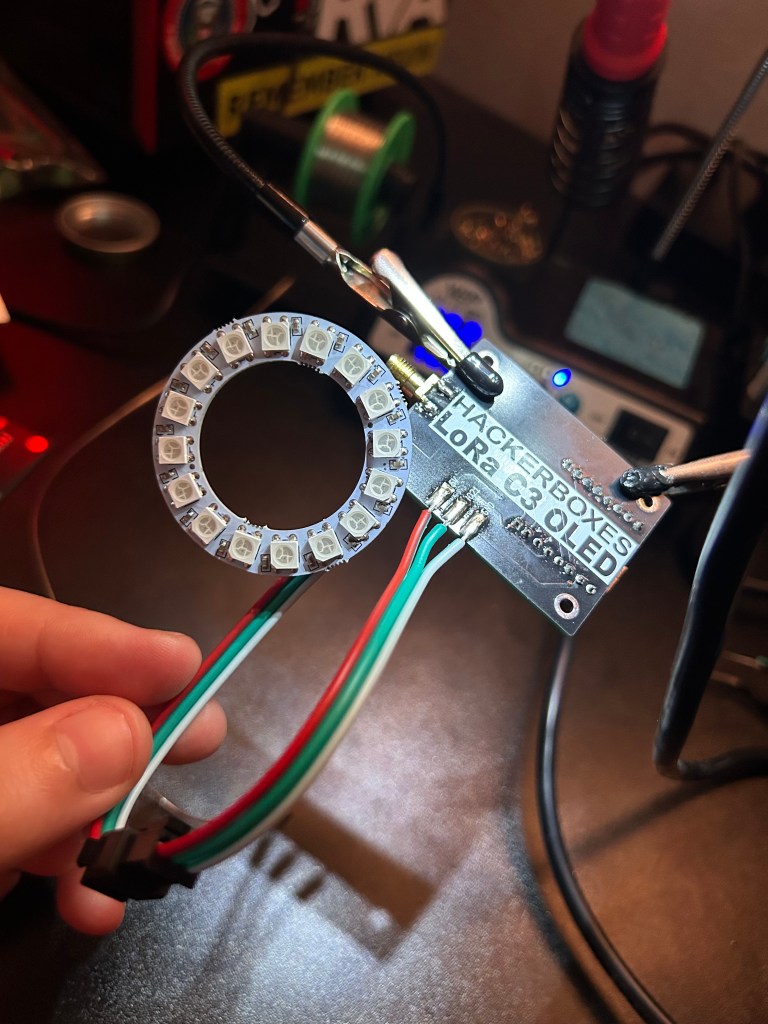
    The next step was to attach the LoRa module and ESP32C3 dev boards to the custom PCB and build the completed controller, this was tricky as the SMA/antenna connector was made of brass so soldering was a bit more difficult. After these were fitted, I had to trim and solder the LED Ring to the PCB:

    Once It was all put together, it was time to compile the webserver and light control programs that would turn this blank slate into an IoT light. Behold, a light so bright that it burned spots into my retinas for like half an hour:

    At this point the board pulled an IP from the local network and the webpage allowed interaction with the LED ring via a web panel! One thing that I noted here, the WiFi credentials are hardcoded, which is a pretty good indicator of how secure IoT devices are in my experience. At this point the first half of this project was done, I now have a cool little smart light that I’m planning on building a mount/lamp for and I’ve learned a bit about the LoRa protocol and IoT construction.

    The second half of the project was constructing a LoRa Relay that can be controlled by the LoRa controller from the first half of the project on an ESP32 board, with a handful of terminal blocks for input/output to other components. These include sensors, actuators, etc. and is something that I definitely want to explore more of, so there may be an update to this post in the future.

    Overall this was a pretty cool project, it wasn’t super involved but I did enjoy putting everything together and learning some Arduino programming. Huge shout-out to Hackerboxes, I’d definitely recommend checking them out if you see anything that interests you! Anyways, I’ll be back to the next HackTheBox module ‘File Transfers‘ this week, so expect another post about that soon here. Thanks for reading!

    ¶¶¶¶¶

    ¶¶¶¶¶

    ¶¶¶¶¶

    ¶¶¶¶¶

  • Jumping right into it this week: This module really wasn’t too difficult, although I did run into some trouble with the skills assessment. To quickly summarize, this module covered some surface level web hacking techniques, namely enumeration and digging through hidden directories to establish a viable target list. Below is a rough outline and what I learned from each section:

    • Utilizing WHOIS: This section was pretty straightforward, it was mostly review on using the WHOIS service to lookup information regarding domain registration, simple enough.
    • DNS and Subdomains: This was a more in depth section and took me the most time, probably a couple hours. This section covered a large chunk of web enumeration material, mostly between DNS query features like dig and zone transfers, which are both used to query more information and records from a DNS server. These can reveal other domains associated with the main domain, and can point at other potential attack vectors. This also included Vhost enumeration, which was a bit of a bear which I’ll touch on a little later in the lessons learned below.
    • Fingerprinting: This covered some simple fingerprinting, which included some techniques for banner grabbing and analysis of HTTP headers via curl and checking for web app firewalls with wafw00f. It also briefly touched on some web app scanners like Nikto.
    • Crawling: This was the most important section in the module for the skills assessment in my opinion. If you take the CPTS course, focus heavily on this. This module covers crawling directories and subdomains for a domain + some info on robots.txt and how (polite)bots will follow indexing instructions in said file. Please please please learn this, it will save your sanity when you go to take the skills assessment for this.
    • Search Engine Discovery + Web Archives: These covered some OSINT and Google Dorking tips + how to use the wayback machine and the benefits of examining archived site variants. This is a useful skill, but was unhelpful for this module specifically.
    • Automating Recon: This covers some simple automatic recon tools that can combine most of the manual recon tools into a single program output, which is super helpful in reality. This was also something good to learn, but I don’t recall using it to grab any of the flags.

    Skills assessment | lessons learned

    The skills assessment here should have been simple, but just as the previous ones I underestimated it. Since this assessment was largely technical and for legal reasons I can’t detail the exact methods or questions asked, so the things that I learned here were:

    1. Be sure to thoroughly enumerate vhosts, the simplest way to prep for this is usually by mapping the domain to the IP in your hosts file
    1. When you find a new subdomain, add it to the hosts file and re-run your enumeration, you can map multiple subdomains to an IP. Be sure to include a port if required.
    1. Use crawlers effectively. Run them on all subdomains, and if they (or your subdomain enumeration) return a robots.txt file be sure to check it, you’ll often find some goodies there.
    1. For the love of all things holy, know how to use curl. THE DIRECTORY REQUIRES BOTH SLASHES —————–http://www../././example/ <– Don’t forget this bracket. curl will not return a result if you do.

    Anyways, this was a pretty short module, and the next module titled: ‘Vulnerability Assessment‘ is largely foundational knowledge relating to the types of vulnerability assessments and their differences from penetration tests. It includes some hands on practice with Nessus and OpenVAS(which I run on my home network periodically) and is largely comprised of things that I learned from several of my certifications so I’ll likely skip it in favor of a side quest/project post. Anyways, thanks for reading!

    ¶¶¶¶¶

    ¶¶¶¶¶

    ¶¶¶¶¶

    ¶¶¶¶¶

  • I clearly misspoke a few posts ago, as two days of study time is not 24 hours of study time, but rather 48 hours of study time, as is evidenced by the time it took me to complete this module. This was an extremely comprehensive section regarding manually footprinting common services and the labs were particularly challenging. I don’t want to get DMCA’d by HTB, so I won’t list any specifics or walkthroughs from the module but rather some things I learned, some tips that helped me, and how my methodology has evolved as a result of these things.

    Breaking it down

    This module was composed of eleven practical lessons, each covering a different common service. Those services were: DNS, FTP, IMAP/POP3, IPMI, MSSSQL, MYSQL, NFS, ORACLE TNS, SMB, SMTP, and SNMP. These are all very common services to find running on servers and networks, and are often misconfigured in ways that allow unauthorized access and/or data exfiltration. Here’s a brief description of what each service does:

    • DNS: resolves IP’s to domain names and vice versa.
    • FTP: Allows remote file transfer.
    • IMAP/POP3: Mail services for storage and retrieval of email.
    • IPMI: Hardware host based management interface, required baseboard management controller. Think of dell iDrac, HP iLO. Can manage machines that are turned off.
    • MSSQL: Microsoft SQL, proprietary SQL database service developed by and for Microsoft systems.
    • MySql: Linux based SQL database service.
    • NFS: Network file sharing system, often used between linux and unix systems.
    • Oracle TNS: Protocol that facilitates communication between Oracle databases and client applications. Used frequently in finance, healthcare and retail.
    • SMB: Network file sharing system, originally proprietary to Windows but can be used on all systems now.
    • SMTP: Protocol for sending emails in an IP network, usually combined with IMAP/POP3.
    • SNMP: Used for monitoring network devices, including servers, switches, and other infrastructure.

    Each one of these could frankly be a post of it’s own due the sheer breadth of content. Most servers run at least one of these services, and many times there is a misconfiguration that can be exploited in those services.

    Lab Challenges

    These labs were all challenging in different ways, but the easy lab really was the most difficult for me. The overall goal is to enumerate an internal DNS server and locate a flag.txt text file. You are provided with some initial credentials, and given a hint about SSH keys located somewhere. The real challenge here was thinking simply. I overthought this significantly, and had a lot of trouble getting the FTP session to do anything as I was getting unhelpful response codes. I eventually realized I couldn’t see anything because the file was hidden, so using a more comprehensive listing command worked. Once here I grabbed the SSH keys and was able to authenticate and locate the flag.

    .

    The second’s challenge was to locate the password for a user named ‘HTB. During the initial scanning phase here I got tunnel vision trying to chase down an SMB share, but none of the scripts or commands I used worked. I took a step back and ran some different nmap scripts, which revealed a NFS share that I had missed earlier. I followed up on the NFS share, mounted it, and found some credentials in the share. I got stuck after this for a good while and had to look up a hint: RDP. Port 3389 is often used for RDP, which I know, I just hadn’t thought to follow up on it. So using the credentials from the NFS share I was able to login to the RDP, wherein I found a SQL client. The credentials didn’t work to authenticate here, and I had clearly missed something important so I went back to the top and started again. I had misused the smb commands so I got stuck here again until I used the HTB command cheat sheet. Once mounted, I found a text file with more credentials, which happened to be reused for the administrator on the SQL server. This allowed me to connect to the SQL database and grab the credentials.

    .

    The third challenge was also to discover the credentials for the ‘HTB user, but this time from a mail server. I again started with some nmap scans, this time discovering the imap and pop3 services running. I couldn’t connect to these without credentials, and hit a wall at not seeing any other services running on the machine. I was tipped to double check which ports are being scanned. I followed this advice and realized that I had missed the UDP ports, so I scanned those as well and discovered that SNMP was running on the machine. I had to run a tool called onesixtyone to discover the community string, which I then used with snmpwalk to enumerate the snmp commands, which revealed credentials that I could use to access the pop3 mail service. Digging through this, I found an SSH key which I then used to connect to the ssh service. I spent a while digging around the server until eventually I decided to check the shell history, which revealed a MySql instance running on the server. After connecting to the MySql instance I was able to find the credentials.

    Lessons Learned

    The first lab really frustrated me initially, as it should have been so simple. It taught me to go more in depth with my directory listing, as people will hide files.

    The second lab helped me realize that I need to slow it down. I got the first credential and ran out of runway, which tells me that I need to revisit every avenue after I discover credentials and see if they’ll work in other places. If I had tried to sign back into the SMB share again with the found credentials, I would have had a much easier time. That and if RDP is open and you have credentials, you might as well give them a try. Essentially, try credentials everywhere.

    The third lab pushed me to enumerate everything. Missing the UDP ports was kind of a lightbulb moment for me where I realized that I was missing a whole other section of services. It certainly influenced my methodology.

    Evolution of methodology

    My methodology is evolving along with the course content, as I realized that I’ve only been scanning half of the ports on machines. From now on, the first thing I’ll do is two nmap scans, a TCP and UDP scan of all ports without versioning, and then a versioned scan afterwards. I’ll then follow up with a scripted scan for anything interesting to check for low hanging fruit. I also need to keep a reference sheet open for commands and remember the order of tools. After I find credentials, I’ll circle back and try them everywhere again, because credential reuse runs rampant.

    Conclusion

    It’s clear that I need to break up these posts into smaller, more technical snippets, so in the next module I’ll start doing that. The next module is called ‘Information Gathering – Web Edition‘, and will be more enumeration regarding web services using web archives, crawlers, search engine discovery, among other things. That one shouldn’t take too long, so I’ll post an update in a couple days. I put the Splunk training on the backburner to finish the module, and may pick it up on the side although this is much more enjoyable, so I’m more likely to pursue it. You may have noticed that I didn’t add color (I did add color, can’t be that lazy.) or code snippets to this post, that is because my brain is fried after 5 hours of studying and several more writing an outline and then this post. Thanks for taking the time to read it!

    ¶¶¶¶¶

    ¶¶¶¶¶

    ¶¶¶¶¶

    ¶¶¶¶¶

  • I’m still in the process of working through the footprinting module, which was estimated to take two days of study. This obviously breaks down to 24 hours of study time which can be a lot on top of all the other day to day things that life spawns. It’s also like twenty some lessons that compose near entirely of text walls followed by short labs. So this post is a short one about a side quest that I’ve taken up along side my CPTS/OSCP study. My goal in this side quest is to go from zero to hero in Splunk.

    .

    .

    I have zero formal experience with Splunk or other SIEM/aggregate systems and have noticed that it is a popular skill to have for defenders, analysts, and SOC teams. I read the initial documentation in a sleepy haze at 1:00 or 2:00 in the morning and missed the part where there’s a Windows .msi installer, which led to me learning some basic Docker the next morning and spending a couple hours spinning up an Ubuntu instance on my server and installing a Splunk container there. At the end of my config, I went back to the beginning of the documentation, lo and behold, a link to a Windows installer. Five minutes later I was signed in and running through the dashboard on my Windows localhost.

    .

    .

    I started working on some of the Splunk Power User cert and want to tackle that and the Splunk Cyber Defense cert in the next month or so. The content doesn’t seem too hard, the system is intuitive enough. My one concern is that it’s wasted time, considering the state of AI and the likelihood of it replacing most jobs that are primarily focused on logging and log analysis. I figure it’s a good skill to have regardless, so I’ll waste some time on it and throw it on my resume. I’ll be back next week with an update on my footprinting methodology and some short write ups on things I found interesting.

    ¶¶¶¶¶

    ¶¶¶¶¶

    ¶¶¶¶¶

    ¶¶¶¶¶

  • Diving right into it, I finished the ‘Network Enumeration with Nmap‘ section over the weekend and am dragging my feet on the ‘Footprinting’ module this week so I decided to write a short post about the Nmap module and how it is shaping my enumeration methodology. For those who don’t know, NMAP is a free and open source network mapping utility for network discovery and security auditing. It is capable of many things, primarily host and port enumeration, which is what it is used for in the CPTS pathway.

    .

    .

    There are many types of scans that can be performed by Nmap and my goal is not to teach these, so I’ll proceed with the scans that I found useful primarily in the labs of the module. The labs for the Nmap module are directed at evading firewalls and IDS/IPS solutions with Nmap scans, as Nmap scans can generate a lot of noise on a network and lead to your attack IP being banned if detected. This is usually caused by rate limiting or IDS systems detecting a list of ports being scanned by a single IP. To avoid this, you can add spoofed IP ranges with the -D RND:# flag, which will generate a set amount of random IP’s that are specified as the source address. This can increase the time it takes to scan and can be noisy.

    .

    .

    The first lab was labeled ‘easy‘, and believe it or not it was the one I had the hardest time with. The goal of lab 1 is to identify which operating system the machine was running on via Nmap OS detection. There was a detection counter hosted on port 80 that could be refreshed to see the IDS/IPS detections from the script. The common script that I attempted for the initial port enumeration is below:

    sudo nmap 10.x.x.x -sS -Pn -n --disable-arp-ping --reason -T2

    This gave me a general overview of the ports open on the machine and their statuses. It also did not increment the detection counter. So naturally my next scan was the following:

    sudo nmap 10.x.x.x -sS -O -Pn -n --disable-arp-ping --reason 

    The -O operator performed OS detection and came back with different results as I ran it with a couple different flags, including -sA, -sT, -sU. Two of the main results were ‘Tomato‘ and ‘Linux 2.1.x‘ if I recall correctly. Neither of these were the correct answer for the lab, and after running nmap another 10 times I decided to see if it was an issue with my syntax by visiting the forum. Here I found that the question was actually asking for the -sV flag, which can determine which version of software is running on a port. This contained the correct answer, although I argue that it was not an OS but a distribution that was being requested, hence my confusion.

    .

    .

    Following this, the second lab, ‘medium‘ was easy. I learned a trick from the course content that seems to be pretty effective. Set the –source-port 53, DNS, as sysadmins often allow all on suspected DNS traffic. Using this and the -sU flag, I was able to find the flag in the DNS server version running on port 53.

    sudo nmap 10.x.x.x -sU -Pn -n -V --source-port 53 -- or something similar to this is what I used. 

    .

    .

    The ‘hard‘ lab was the easiest, as there was nearly a step-by-step guide to complete it in the course content. The methodology was simple for this as well, run a basic scan to check for ports and statuses, run a second scan to determine if you can get past the firewall, and lastly the trick was to use ncat to banner grab the flag from the service port. I won’t post the actual command here, because it’s easy enough to find on your own and I don’t want to spoil any of these challenges.

    .

    .

    Overall, I would say to begin your methodology with a quick and soft scan to determine what ports are open, then perform increasingly complex scans in a stealthily fashion to determine what firewall rules are being used. Using the DNS source port is a smart workaround that I imagine is a common misconfiguration. Next, I’ll be posting about a handful of service enumeration techniques, from FTP to SMB, NFS, DNS, SMTP, etc. I’ll probably split this into two posts as there’s a lot to cover and I need to stop posting text walls. Thanks for reading.

    ¶¶¶¶¶

    ¶¶¶¶¶

    ¶¶¶¶¶

    ¶¶¶¶¶